
Mastering Google Maps: Your Step-by-Step Guide to Dropping a Pin Like a Pro
Google Maps has become an essential navigation and location-sharing tool for millions of users worldwide. Whether you want to save a favorite place, share your exact location, or find directions to a spot that doesn’t have a proper address, knowing how to drop a pin in Google Maps is incredibly useful.
In this guide, we’ll explain how to drop a pin on Google Maps using mobile (Android & iPhone) and desktop, along with tips, benefits, and common use cases. This article is fully SEO-optimized to help users find accurate, up-to-date information easily.
What Does “Drop a Pin” Mean in Google Maps?
Dropping a pin in Google Maps means marking an exact location on the map manually. This is especially helpful when:
- The address is missing or incorrect
- You’re meeting someone at a specific spot
- You want to save a custom location
- You need directions to an unnamed place
When you drop a pin, Google Maps places a red pin icon on that location, allowing you to explore, save, share, or navigate to it.
Why Use the Drop a Pin Feature in Google Maps?
Here are some key benefits of dropping a pin in Google Maps:
- 📍 Find locations without an exact address
- 🚗 Get accurate driving, walking, or transit directions
- 📤 Share your real-time or saved location
- ⭐ Save favorite or important places
- 🧭 Improve navigation accuracy
This feature is useful for travelers, delivery drivers, business owners, event organizers, and everyday users.
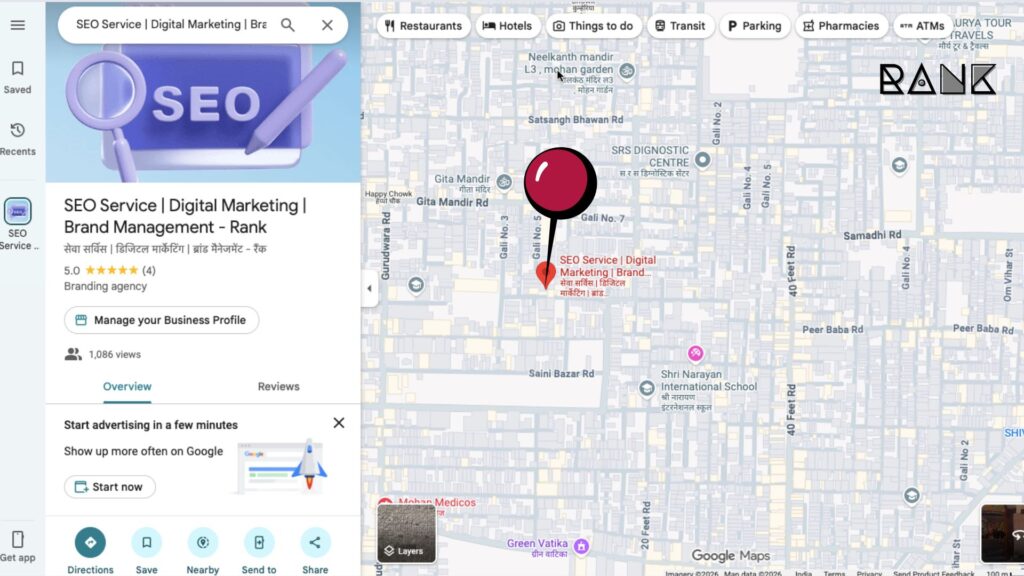
How to Drop a Pin in Google Maps on Mobile (Android & iPhone)
Dropping a pin on mobile devices is quick and easy. Follow these steps:
Step-by-Step Guide (Mobile)
- Open the Google Maps app
Make sure you’re logged into your Google account. - Search or navigate to the location
Zoom in on the map to find the exact spot you want to mark. - Tap and hold on the location
Press and hold your finger on the desired area for a few seconds. - A red pin will appear
The pin drops automatically, and location details show at the bottom. - Use the available options
You can now:- Get directions
- Save the location
- Share the pin
- Add it to a list
- See coordinates
How to Share a Dropped Pin on Mobile
After dropping the pin:
- Tap on the location card at the bottom
- Select Share
- Choose WhatsApp, Email, SMS, or copy the link
This is perfect for sharing meeting points or delivery locations.
How to Drop a Pin in Google Maps on Desktop (PC or Laptop)
Using Google Maps on a desktop offers more precise control with a mouse.
Step-by-Step Guide (Desktop)
- Open Google Maps in a browser
Visit maps.google.com and sign in. - Search or zoom to the desired location
Use the search bar or zoom manually. - Click on the exact spot
Left-click on the location where you want to drop the pin. - A gray pin appears
This pin marks your selected location. - View location details
An information panel opens at the bottom of the screen.
What You Can Do After Dropping a Pin on Desktop
- 📍 Get directions
- ⭐ Save the location
- 📤 Share the pin link
- 📌 View latitude and longitude
How to Save a Dropped Pin in Google Maps
Saving pins helps you revisit locations later.
Steps to Save a Pin
- Drop a pin on the map
- Click or tap Save
- Choose a list:
- Favorites
- Want to go
- Starred places
- Custom list
Saved pins sync automatically across all your devices.
How to Get Directions Using a Dropped Pin
Once a pin is dropped:
- Select Directions
- Choose your mode of transport:
- Driving
- Walking
- Cycling
- Public transport
- Enter your starting location
- Start navigation
This is especially useful when traveling to remote or rural locations.
How to Find Coordinates from a Dropped Pin
Google Maps also provides latitude and longitude coordinates.
On Mobile:
- Drop a pin
- Swipe up on the location card
- Coordinates appear below the address
On Desktop:
- Drop a pin
- Coordinates appear in the search bar or location panel
These coordinates are useful for GPS devices, surveys, and technical navigation.
Common Uses of Dropping a Pin in Google Maps
Here are real-life situations where this feature is extremely helpful:
- 📦 Delivery and logistics services
- 🧳 Travel planning and sightseeing
- 🏡 Real estate location sharing
- 🎉 Event meeting points
- 🚑 Emergency location sharing
Troubleshooting: Pin Not Dropping?
If you’re facing issues, try these tips:
- Zoom in closer before tapping or clicking
- Ensure GPS/location services are enabled
- Update the Google Maps app
- Clear app cache (Android users)
- Refresh the browser (Desktop users)
SEO Tips: Why “Drop a Pin in Google Maps” Is a Popular Search
Keywords related to this topic include:
- how to drop a pin in Google Maps
- drop a pin Google Maps mobile
- drop a pin Google Maps desktop
- how to save a pin in Google Maps
- Google Maps pin location
Optimizing content around these terms helps users find accurate instructions quickly.
Frequently Asked Questions (FAQs)
Can I drop multiple pins in Google Maps?
You can drop multiple pins one at a time and save them in different lists.
Does dropping a pin require internet?
Yes, internet access is required to load maps and location data.
Can others see my dropped pins?
Only if you share the pin or make a list public.
Is dropping a pin free?
Yes, Google Maps and all its features are completely free.
Conclusion
Knowing how to drop a pin in Google Maps on mobile and desktop can save time, improve navigation, and make location sharing effortless. Whether you’re traveling, managing deliveries, or simply meeting friends, this feature ensures precision and convenience.
By following the step-by-step instructions above, you can confidently use Google Maps like a pro. Save, share, and navigate smarter—one pin at a time 📍